
Some may find that the recording feature will not work for them. One possible solution is the fact that you may not have seen the prompt to give SongSilo access to your microphone. SongSilo record window should have prompted you to Allow Access to your microphone. However, if you didn't see that prompt, here's how you can do this manually..
1. Click the following link: http://www.macromedia.com/support/documentation/en/flashplayer/help/settings_manager06.html
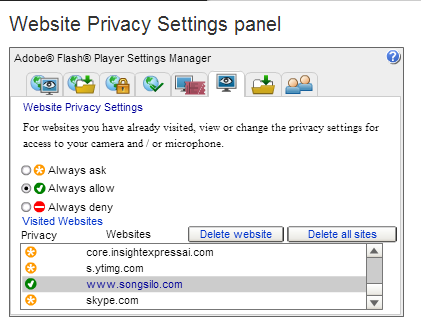
2. In the box that appears under the Heading: "Website Privacy Settings Panel" scroll down until you find www.songsilo.com
Highlight our website by single clicking it. Then click the "Always Allow" radio button directly above the website list. It should look like this:
3. Then click any of the other tabs that appear in order to ensure the setting is refreshed. See image:
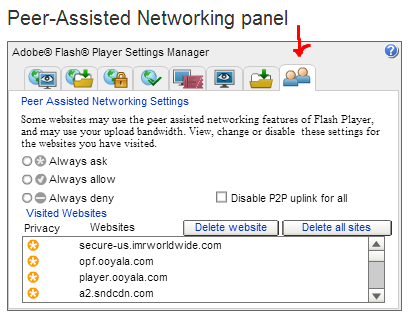
4. Once you have clicked one of the other tabs you want to check and see if the change was successful. Click the Website Privacy Setting tab again
and you should be able to find www.songsilo.com and it should have a green check mark to the left of it. As seen in below image:

5. You have given SongSilo.com access to your microphone. Now check to see if it's working by going to "My Silo" within the SongSilo.com page and then clicking the "Record" button. Once the record window shows, click Record, then Stop. Click Play Recording and it should play what you recorded.