
That's what this is all about! Making music with others. From the "Connect" page you will see a list of "Latest Tracks". As seen here:
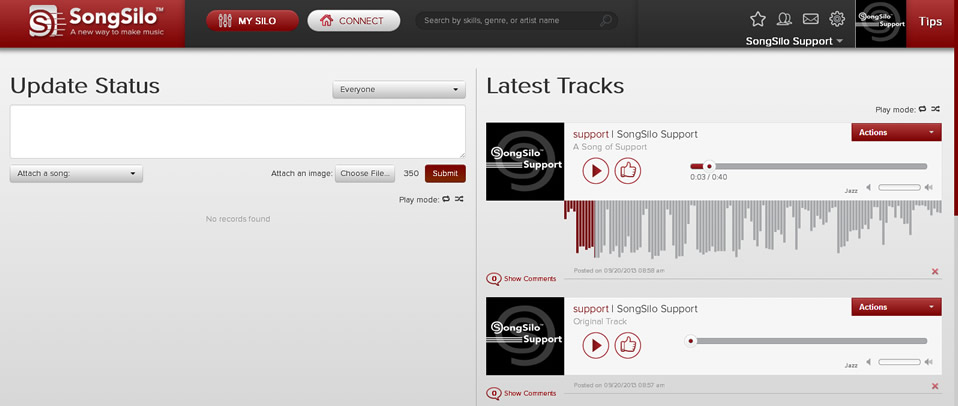
Once you find a track you would like to collaborate with you click the  menu found on the right top corner of the track.
The menu will drop down with the following options:
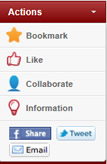
Click the "Collaborate" link. Confirm "Yes" that you would like to Collaborate with this Track.
Then the track is pulled into your "Silo" ready to be collaborated with. As seen here:
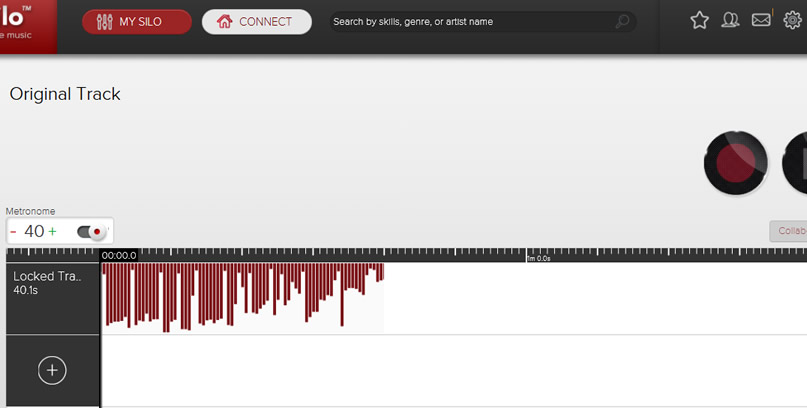
You will notice that the Author's track in non-editable. This is based on the Collaboration Options that the author chose before they published the track. Please see article "Collaboration Options" for more details on this.
Now we're almost ready to collaborate with this track. You have the option of importing a track by clicking the  button or the preferred option which is to record right along with the track as it plays. In order to do this you need to click the
  button. Once you do that the "Record" window will appear:
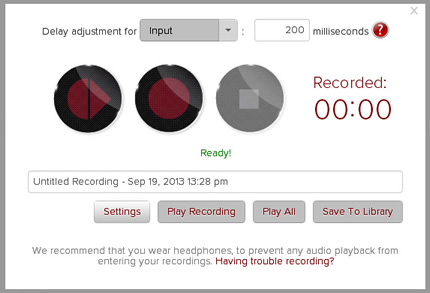
If this is your first Collaboration you might need to make a few setting adjustments. Click settings. The Settings window will appear:
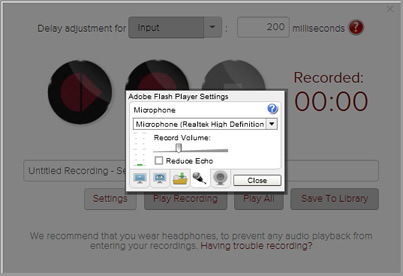
This is where you can choose your Microphone source from the drop down (as seen in above image) and adjust the "Record Volume" as needed. Once you are satified click Close. If the microphone is turned up to loud you will see the volume bar reach into the orange and red area as seen in the following image:
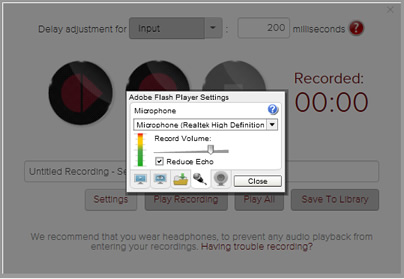
Lowering the microphone is imperative for proper recording sound.
Now that you've adjusted your settings we should be ready to record! After clicking the close button and making sure you're wearing your headphones click the  button. This allows you to play the track and record along with it. (Note: You can begin recording your part from any point of the track you choose.)
You may want to record just a little bit, click the  button (to stop the recording) and then click "Play All" to hear how your recording sounds with the track. You may have to make more setting adjustments at this point if the quality of your recording needs to be improved. You may also hear a delay in your recording. If so see article "Is there a way to fix the delay I hear when I record multiple tracks?" Begin the process over by clicking the button and try again until you are happy with your recorded track.
Once you are happy with your recording, label the recording as you wish and then click the "Save to Library" button on the bottom right of the Record window. Your track is now being added to your personal library and to the track editor. Once the track is loaded, you can either record an additional track or you can close this window.
Once the window is closed you will see your new track underneath the Author's track. You can make some further adjustments to your track here (including: adjusting volume and panning L/R). Once you are completely happy with your collaboration recording, you can now send it back to the author for his/her review. You can do this by clicking the
 button on the top right corner of the screen. Once you have submitted the collaboration to the Owner & Author of the original track the collaboration is no longer available to you. The Owner now has the choice as to whether he/she wants to publish your collaboration or not. If he/she wants you to make adjustments to your piece, the owner can pass the collaboration back to you for editing.
(Note: We Recommend you wear headphones, to prevent any audio playback from entering your recording.)