
You can view the online video tutorial at: http://www.songsilo.com/songsilos-online-studio-tutorial.html
or Follow these steps:
Step 1: Click on the button labeled "My Silo" at the top of the screen.
Step 2: Click "Create New Project" at the left of the "My Silo" screen.
Completely fill out the necessary New Project fields. Then click "Create" at the bottom of the screen.
Step 3: Once you are ready to make a recording click the "Record" button which looks like this:
The following window will appear:
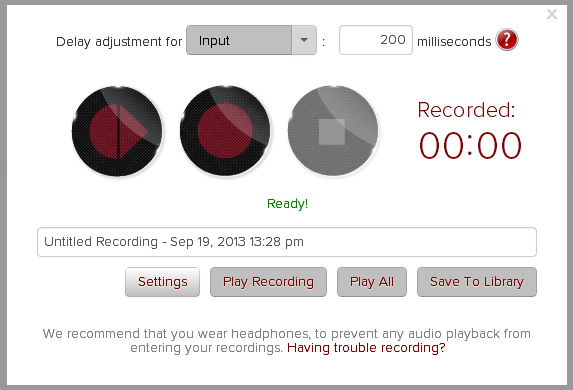
For initial recording you would click the "Record" button
 .
.This would be the first track recorded in this project.
If you are collaborating on another user's track OR you are adding to your own track(s) you have the option of clicking the
"Record & Play" button
 .
.Step 4: Play back your single recording with the "Play Recording" button. To play all the tracks together including your new recording, click "Play All".
Step 5: Does the timing of this new track sound off? No? Go To Step 6. Yes? This is because some computers have a delay when they record. This is usually because of the hardware installed on your machine coupled with the input devices you might be recording with. You can adjust this delay by entering what you think the delay may be in milliseconds and then test it by clicking "Play All" again. Repeat this until it aligns correctly. Once you are happy with the adjustment, you can label the input device you are currently recording with to save it for future use. An example may be "USB Electric Guitar". Each time you return to record again using this input device, the delay adjustment you chose, will be listed under the "input" drop down and will automatically set the adjustment when you select that device. You should not have to re-adjust the timing each time!
Step 6: If you are happy with your track, click "Save to Library". This will upload the track to your online library and insert the track into another layer of the Track Editor.
Step 7: At this point, you can either record another track or close the window and edit the track(s) you recorded. You will be able to adjust the volume, cut/mute parts of a track,etc.
Step 8: Once you are happy with the project track(s), you can now decide whether you want to publish the project for others to hear and/or collaborate on. You have the choice to publish the track for Everyone to listen to or you can select a specific group of users (these are setup under your friends page) in the system to privately publish to. Remember to adjust your collaboration options before publishing. Please see following image:
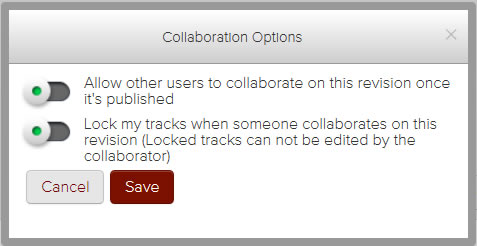
The first option Allows you to lock your track so no one can collaborate on it. You are publishing it simply for listening.
The second option allows you to give editing rights to the collaborator. They can adjust volume, trim, move and mute your track. It defaults to NOT allowing users any editing rights to your track.
It may take a few minutes for your published track to be posted in the system. This track is no longer editable by you once it is published. You can either unpublish the track to edit it or you can create a New Revision of the track that you can work on.